

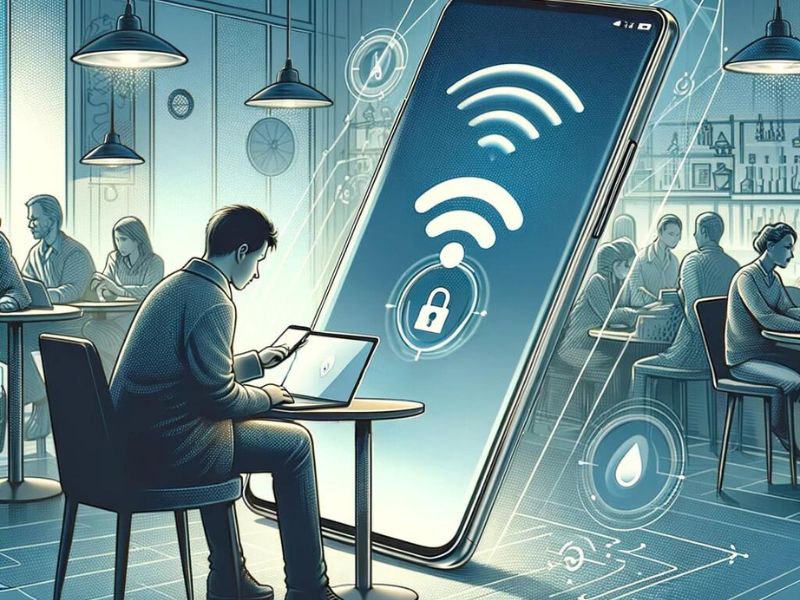
Have you ever wanted to connect to a public WiFi network while you’re out and about? Maybe you want to check your email, browse social media, or stream music. But before you do that, you should know that public WiFi can be dangerous and expose your personal information to hackers and cybercriminals.
That’s why you should avoid questionable public WiFi and use your iPhone’s hotspot instead (Android users, follow these steps). Hotspot is a feature that lets you share your iPhone’s cellular data with other devices, such as laptops and tablets. This allows you to enjoy a secure and private internet connection wherever you are. Before we explain how to set up a hotspot, read Cell Phone Booster vs. Mobile Hotspot: What’s the Difference? How to Choose?
How to set up a hotspot on your iPhone
Setting up a hotspot on your iPhone is easy and quick. Just follow these simple steps:
- open setting Apps on iPhone
- select personal hotspot
- Turn on the switch next to the location shown Allow others to join Update your password if necessary
- Note that devices logged into the same iCloud account don’t require a password to join your iPhone’s personal hotspot.
- Optionally, you can also choose to family sharing If you have other family members you want to allow to join your personal hotspot without requiring a password.tap Family sharing.
- Then turn on the switch Family sharing.
- The family name will be displayed below. You can allow each member of your family to join automatically or ask for approval before connecting.just click name and choose one automatic or ask for approval.
- If your iPhone’s WiFi network doesn’t appear or fails to connect when you try to connect from an older WiFi device, you may also need to turn on Maximize Compatibility.
- To do this, setting. tapping personal hotspot Then scroll down to the next item Maximize compatibilityswitch upon.
By default, the hotspot on your iPhone has the same name as your iPhone. You can rename your iPhone by following the steps below.
- go to setting
- Tap general
- click about
- Tap name
- rename Enter your iPhone’s name in the box
- Tap end
More: Best Cell Phone Chargers of 2024
How to connect another device to your iPhone hotspot
- going to System setting on other devices.This example uses a MacBook Pro
- Scroll down and tap Wifi On that device, hotspot nameand Please tap. Enter your password when prompted and you’re good to go.
Hotspot features may be hidden or disabled by your carrier, so if you don’t see or can’t turn on hotspot features, please contact us to confirm your ability to use your device to: Please note that you will need to make sure it is included in your plan. hotspot.
More information: Top 5 cell phone boosters
Monitor how much data you use on your iPhone hotspot
Using a hotspot is a great way to stay connected and safe online. However, keep in mind that it uses your iPhone’s mobile data, so you’ll need to watch your usage. Here’s how to check your data usage:
- go to setting
- tap mobile phone
- Scroll down to see how much data is I have used it in Current period
If you have a limited data plan, we recommend limiting hotspot usage to avoid additional charges. You can also turn off your hotspot when you’re not using it to conserve battery life. To do this, follow these steps:
- I’m going home setting
- tap personal hotspot
- turn around off switch next door Allow others to join
More information: Best accessories for your phone
How to use a VPN to protect your hotspot privacy and security
Hotspots are subject to the same risks as public WiFi connections, including data breaches and abuse by hackers and other bad actors. however,Here’s how to protect yourself when using your iPhone hotspot. That is by using a virtual private network or VPN.
Adds an extra layer of security to keep you safe online. If you create and use a personal hotspot, make sure it is password protected. We’ll explain the benefits of using a VPN with your hotspot and provide step-by-step instructions on how to set up a VPN by clicking here.
Cart important points
Using your iPhone as a hotspot is a convenient and secure way to access the Internet on the go. You can share your mobile data with other devices, control who can join your hotspot, and customize your hotspot name and password. However, you should also keep an eye on your data usage and battery life, and use a VPN to protect your online privacy and security.
In what situations would using iPhone Hotspot be useful? Let us know in the comments below.
For more of my tips, subscribe to my free Cyberguy Report newsletter here
🛍️ Shopping guide:
Kids | Men | Women | Teens | Pets |
For loved ones:
Cooking | Coffee | Tools | Travel | Wine |
device:
Laptop | Tablet | Printer | Desktop | Monitor | Earphones | Headphones | Kindle | Soundbar | Kindle | Drone |
accessories:
Car | Kitchen | Laptop | Keyboard | Phone | Travel | Stay Comfortable |
Personal gift:
Photo collection | Digital photo frame |
safety
antiviral agent | VPN | Secure email |
You can’t go wrong with these:
gift card
