

Imagine this: you’re driving somewhere you’ve never driven before and you’re relying on Google Maps to navigate. Suddenly, your internet stops working and you lose reception. The good news is that the route you’re following will probably continue to work even without service. If you have to stop or change your route somewhere, you’ll run into problems.
In the United States, especially in national parks and long, remote highways, the service isn’t always good, and sometimes the internet isn’t available at all. No internet means you can’t add stops to your route, like gas stations or markets. No internet means you can’t find a new route if you get lost. No internet means you can’t go anywhere but your current destination. You’re locked into the route you’re going. And that’s it.

If you are traveling in an area you are not very familiar with and want to get there without any issues, the internet is pretty much a must for all the reasons mentioned above.
In other words, Unless you have offline maps.
If you’re planning a road trip or heading to a location where internet may be weak or unavailable, you’ll need to know how to download maps of the area in Google Maps.
Here’s what you need to know:
Want to check out more Google Maps tips and tricks? How to blur your house on Google Maps and 3 Google Maps A feature you should definitely know about.
How to Download Google Maps Offline
First, you don’t download the entirety of Google Maps. Instead, you should download the specific areas you plan to be in before you travel, such as cities, counties, or regions where you might not have cell coverage.
To download a map from Google Maps offline, open the Google Maps app on iOS or Android and tap your profile picture in the top right (you must be logged into your Google account to use this feature). In the menu that appears, Select Offline Maps > Your Own Maps.
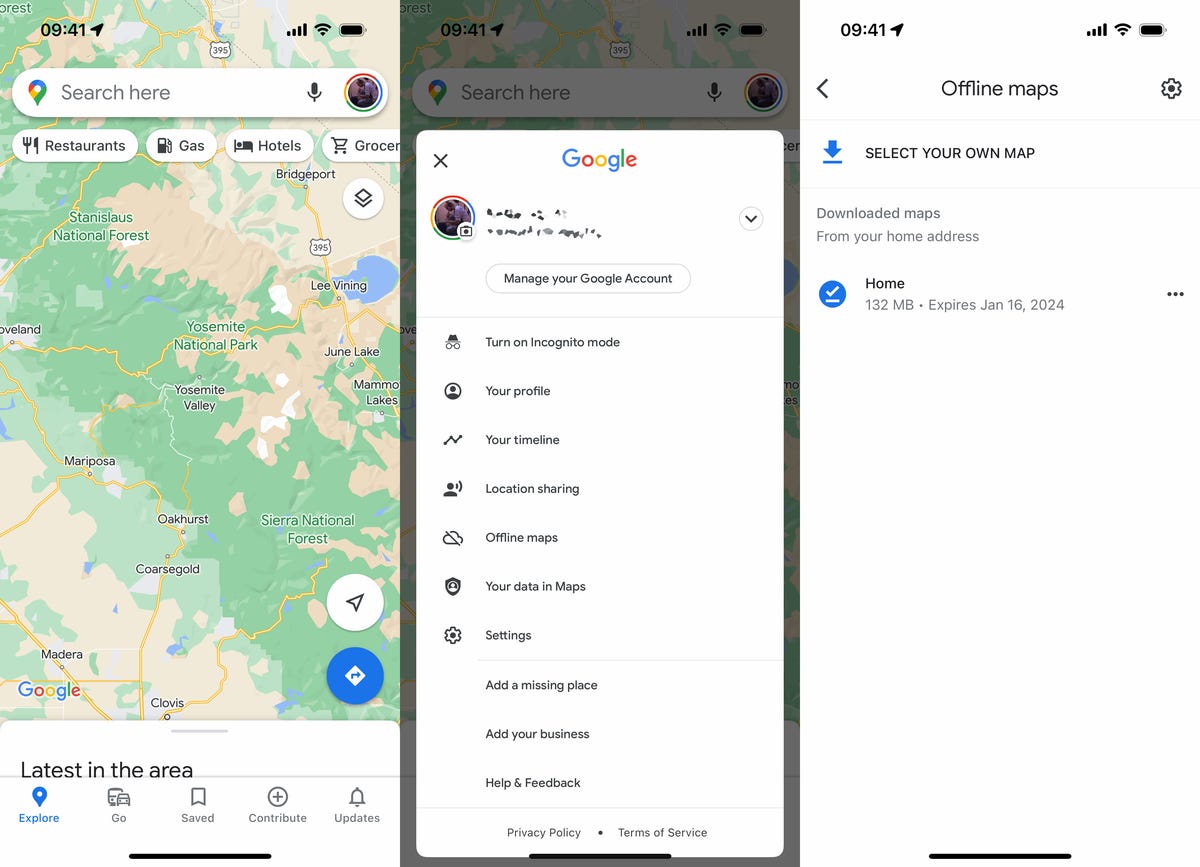
You can download multiple Google Maps areas offline.
Use your finger to place the map you want to download within the rectangular frame. Move around the map with one finger and zoom by pinching with two fingers. As you move around the map, you’ll see how much storage space the download will take up on your phone. When you’re happy with the area, tap. download.
NoteOr, enter a city or other area into Google Maps download You can click the button that appears in the pull-up window to download the map offline, but this only works on iPhones.
read more: Google Maps cheat sheet: the most useful tips
You must be connected to Wi-Fi to download maps. If you want to download them on your phone, Offline Maps On the page, tap the gear icon in the top right When to download offline maps Select Over Wi-Fi or mobile networksOnce you have downloaded the map, Offline Maps On this page you can find all our offline maps.
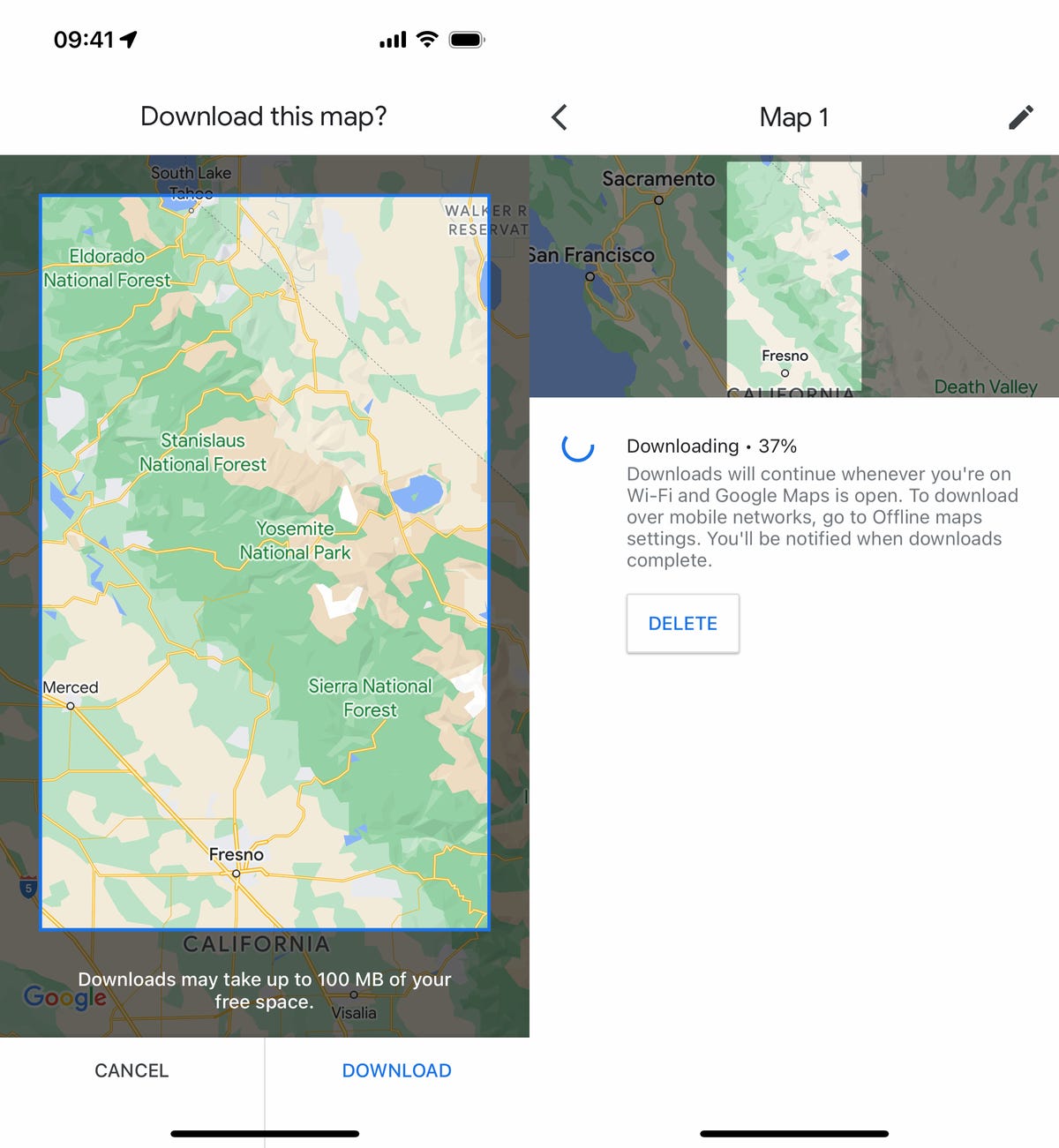
You can only download maps up to 250MB in size (which in the map you selected appears to be roughly the size of the state of Maine).
You will now be able to use Google Maps offline in the area you downloaded it to, but only in that area. It won’t take into account traffic and other road issues, so you won’t get highly accurate travel times or alternative route options, but it will give you an approximate time for your trip. Public transport, biking and walking directions are also not available offline; only driving directions are available.
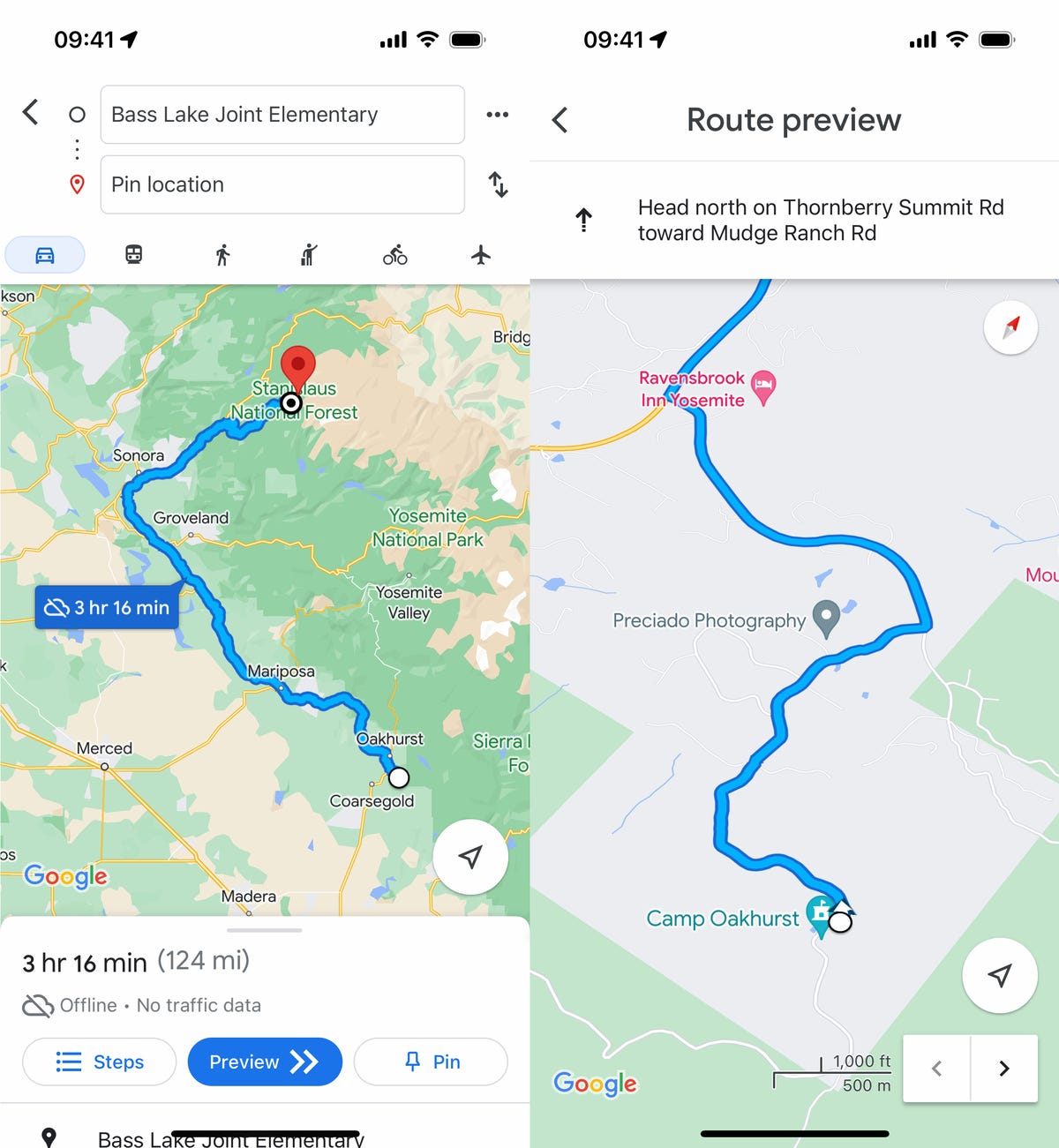
You’ll know you’re using offline maps if you see a little cloud icon with a line through it on Google Maps.
If you want more Google tips, read on. Google Home settings you should change immediately Here are our picks for the best Pixel phones.
