

When you have a guest over, one of the first things you do is share your Wi-Fi password with them. Sharing Wi-Fi passwords has gotten a lot better recently, but there’s still room for improvement. 1Password, one of the best password manager apps, has added a new feature that makes it even easier to share your Wi-Fi passwords with others. 1Password can automatically generate QR codes for any Wi-Fi network you’ve saved, making it easy to share even if you’ve never connected to that network. This gives it an advantage over other Wi-Fi password sharing methods that require you to save the network on your device.
How to Share Wi-Fi Passwords Using 1Password QR Codes
1Password has updated its various apps to support sharing Wi-Fi passwords via QR codes on all supported devices. To use this feature, first update 1Password to the latest version. Then, when you open the app and access one of your saved Wi-Fi passwords, you’ll see a QR code there to help your friends connect.
You can also get a QR code when creating a new entry, make sure to select Wireless router After selecting New Products button.
Don’t worry if the QR code doesn’t appear right away, you’ll need to complete the network name and network password entries before anything will appear.
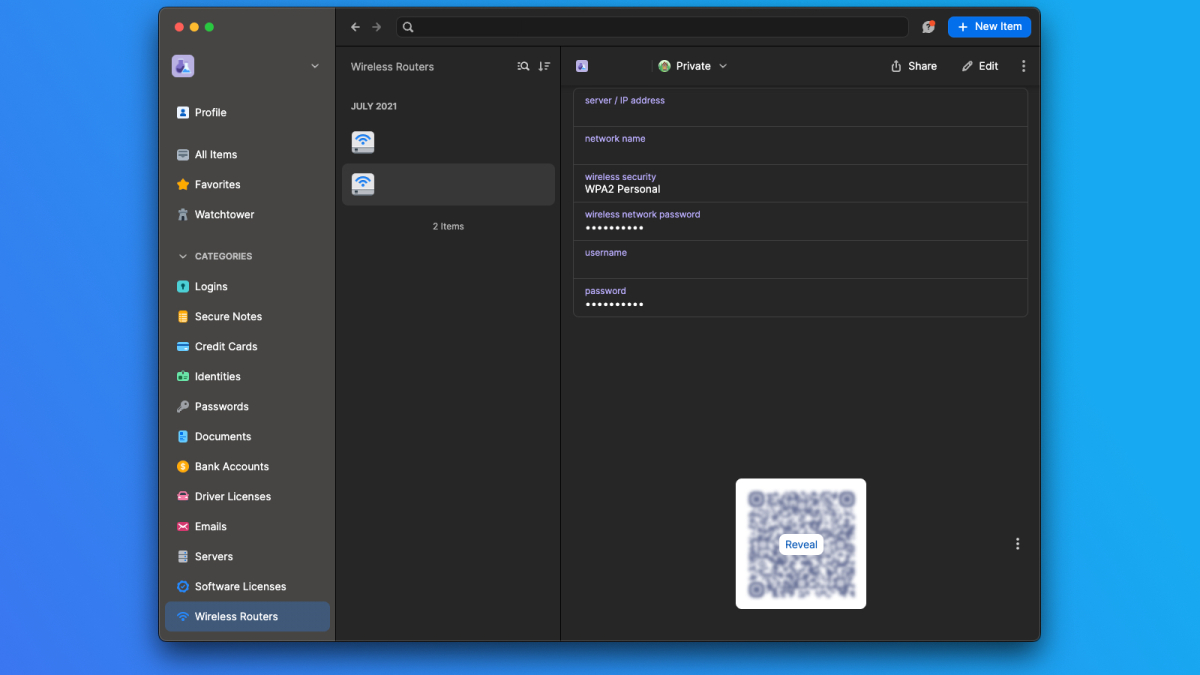
Once a Wi-Fi network is saved correctly, 1Password will automatically display a QR code under your Wi-Fi credentials. Scan this QR code from any device and you’ll be prompted to join that Wi-Fi network. For your convenience, you can also screenshot and print this QR code to avoid having to open your phone. Note that if you update the network name or password, the QR code will also change.
If you have multiple Wi-Fi passwords saved in the same entry, such as a primary network and a guest network, 1Password automatically selects the one you choose as the “primary network” for the QR code. For best results, we recommend saving each network in a separate entry.
How to hide Wi-Fi QR codes with 1Password

Credit: Pranay Parab
1Password’s default setting shows the Wi-Fi QR code, but you can change it if you want more privacy. Most people won’t need to do this, since 1Password is already locked with a Master Password or biometric authentication. However, some people don’t want the QR code to be visible by default, and I’m one of them. As my job is to write about useful features in my favorite apps, hiding the QR code that reveals my personal information is essential for me to take a screenshot.
Whatever your reason, here’s how to hide your Wi-Fi QR code with 1Password: 1Password Settings > Security Disable Always show Wi-Fi QR code.
